"How much longer until it's over?" — during a lesson, or while playing at home, have you ever been asked this over and over by a child? Even if they can read the clock, working out "it's 4:16 now, and it ends at 4:45, so there are 29 minutes left" — that is, comparing two times to calculate "how many minutes are left" — is very hard for a young child.
The Mitoshi Clock (みとおし時計) is a free see-ahead timer from SignCascade UD that runs entirely in your browser. It shows the "now" and "end" times side by side on two analog clocks and conveys the time ahead with words and pictures a first-grader can understand, like "When the long hand reaches 9, it's over." No install or sign-up is needed, and it works right away on computers, tablets, and interactive whiteboards.
In this article, for teachers and parents, I'll walk you through what the Mitoshi Clock can do and how to use it, step by step.
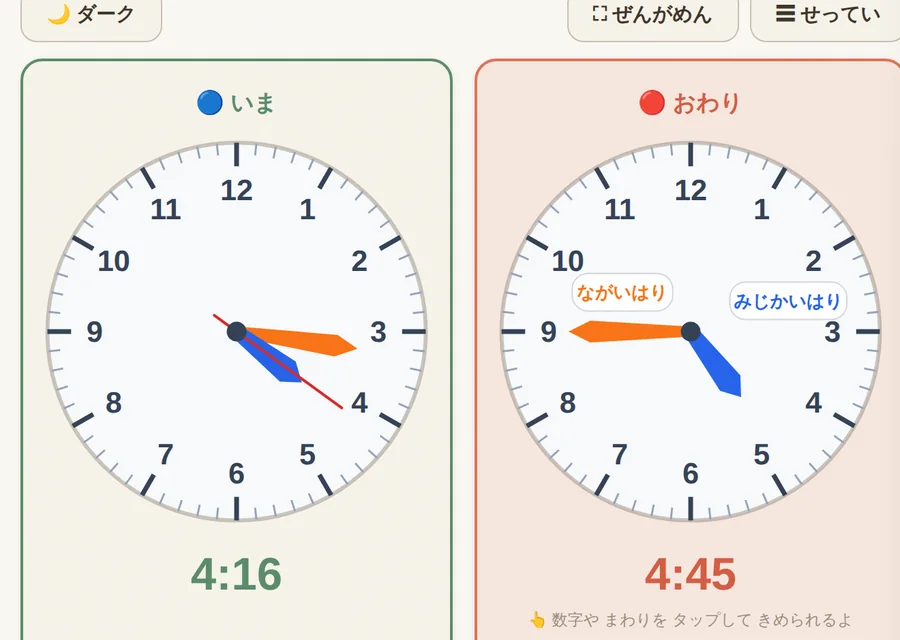
For children who find "how much longer?" difficult
A sense of time (how many minutes are left, how far things have progressed) is second nature to adults, but for children it is hard to grasp because it cannot be seen. Especially for younger elementary-school children and children who struggle to see time ahead, being told "it's almost over" doesn't tell them whether that means 5 minutes or 20 minutes, which tends to make switching between activities difficult.
The Mitoshi Clock turns that "invisible time" into a visible form — the hands of an analog clock. Because there is a concrete goal — "when the long hand gets to here, it's finished" — children can feel the time remaining for themselves and settle into the activity calmly.
What the Mitoshi Clock is — making "now" and "end" visible
On the screen, the "now" clock (blue) and the "end" clock (red) appear side by side. The "now" clock moves to match the real time, and you set the end time on the "end" clock. Between the two clocks, a progress bar appears, so you can see at a glance how far things have progressed and how much time is left.
On the "end" clock, the hands you can move are labeled "long hand" and "short hand," so there's no confusion about which one to move. A digital display (e.g., 4:45) also appears below the clock, so you can check it in both analog and digital form.
Basic usage — three steps
It is very simple to use. Just remember these three steps and you can start right away.
- 1. Set the "end" time
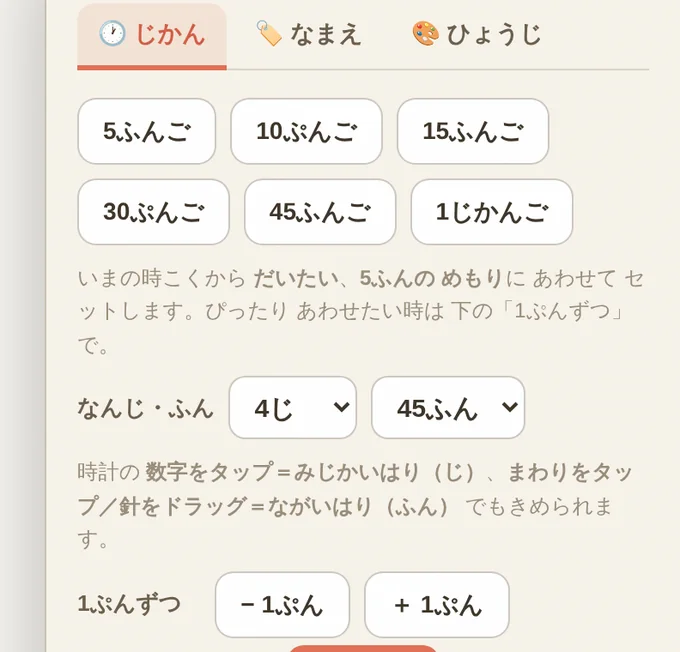
- Press one of the buttons in the panel on the right — "+5 min," "+10 min," "+15 min," "+30 min," "+45 min," or "+1 hour" — to instantly set a time that many minutes from now. If you want it exact, you can fine-tune one minute at a time using the "hour / minute" selectors or the "+1 min / −1 min" buttons.
- 2. Or set it by tapping the clock directly
- Tapping the numbers on the clock moves the short hand (the hour), and tapping around the edge or dragging the hand moves the long hand (the minutes). You can also let the child move the hands themselves to decide the end time.
- 3. See ahead with "how many minutes left" and the progress bar
- Once it's set, how many minutes are left is displayed automatically, and the progress bar gradually extends. Without saying a word, children can feel for themselves that "it's almost time."
"When the long hand reaches ◯, it's over" + read-aloud
The Mitoshi Clock's biggest feature is the gentle, plain-language message shown large at the bottom of the screen. Instead of reading out the time, it conveys a visual goal — "how far the long hand has to travel before it's over" — like "When the long hand reaches 9, it's "over."" This way, even children who can't yet read the clock's numbers well can see the time remaining for themselves.
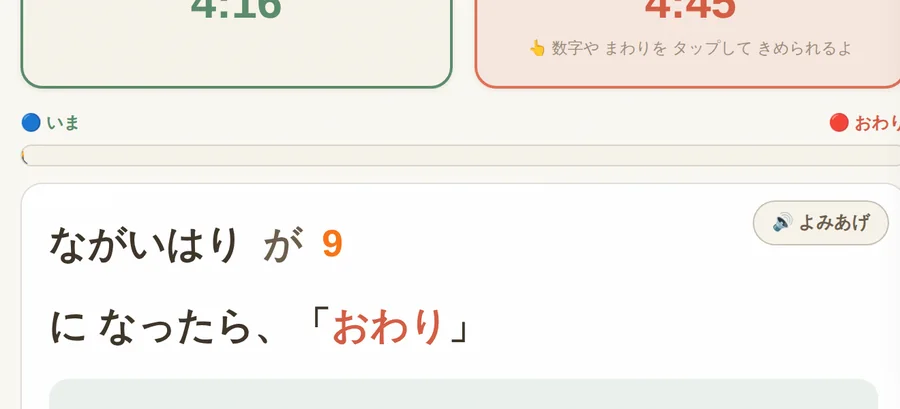
Pressing the "read aloud" button reads this message out loud. For children who find it hard to follow text with their eyes, the time ahead can be conveyed through hearing. Having cues for both the eyes and the ears also aligns with the principles of universal design.
Compare two clocks, or overlap them into one
In the display settings, you can choose whether to show "now" and "end" as two clocks side by side or overlapped into a single clock. Side by side makes it easy to compare "where we are now" with "where the goal is"; overlapping makes it easy to grasp at a glance that "the hand goes from here to here" within one clock. You can switch depending on what's clearest for the child and the size of the screen.
Change the look — for the classroom and for home
In the "Display" and "Names" tabs, you can change the look in various ways. You can choose the color, thickness, and shape of the hands (normal / thick / line / arrow), give the hands names, and turn the digital display on or off. For children who find eye movement difficult, you can also do things like making the hands thick or colorful.
You can also switch to full-screen mode, so you can display it large on a classroom interactive whiteboard or projector and share the time remaining with the whole class. You can also switch to dark mode, which is easy to see even in a dark room.
Scenes where it helps
- Sharing the time remaining in a lesson or test with the whole class
- Making the transitions of lunch, cleanup, and break time go smoothly with a clear view ahead
- Gently conveying "tidy up in 10 minutes" or "games only up to here" at home
- In special-needs and developmental support for children who struggle to see time ahead
- As a support for learning to tell time when learning to read an analog clock
You can use it with peace of mind
The Mitoshi Clock is completely free, with no sign-up and no install. Just open your browser and you can start right away, with no personal information to enter. Settings are processed only within your device's browser, so you can use it with peace of mind in the classroom or at home. It works with the browsers on computers, tablets, and smartphones.
Frequently asked questions (FAQ)
- Is the Mitoshi Clock free?
- Yes, it is completely free. No sign-up, no login, and no install are required — just open your browser and start using it right away. There are no extra fees or in-app purchases.
- What is the Mitoshi Clock for?
- It is a timer that makes the current time and the end time visible on two analog clocks and conveys the time ahead in words a first-grader can understand — like "When the long hand reaches 6, it's over." It helps with managing lesson, lunch, and cleanup time, and with supporting children who struggle to see time ahead.
- How do I set the time?
- Tap a button such as "+5 min," "+10 min," or "+30 min," or tap the numbers on the clock (short hand = the hour) and tap around the edge or drag the hand (long hand = the minutes). There are also buttons to fine-tune one minute at a time.
- Can young children who can't read yet use it?
- Yes. Everything is shown in simple words, with pictures and text like "When the long hand reaches ◯, it's over." There is also a read-aloud (audio) button, so the time ahead can be conveyed through hearing as well.
- Can it be used in special-needs or developmental support?
- Yes. For children who find it hard to see time ahead, it shows the time remaining as a concrete goal — "how far the long hand will move." You can change the color, shape, and name of the hands, and full-screen mode lets you display it large on an interactive whiteboard.
- Can I use it on an interactive whiteboard or projector?
- Yes. It supports full-screen mode, so you can display it large on a classroom interactive whiteboard or projector and share the time remaining with the whole class. You can also switch to dark mode.
- Is my data safe?
- Settings are processed only within your browser, and no personal information needs to be entered. You can use it with peace of mind in the classroom or at home.
In summary
The Mitoshi Clock is a free see-ahead timer you can use just by opening your browser — no install, no sign-up. It makes "now" and "end" visible on two analog clocks and, with gentle words like "When the long hand reaches ◯, it's over" and read-aloud audio, tells even young children "how much longer" it is. It helps with a wide range of things, from managing time in lessons and at home to supporting children who struggle to see time ahead.
Try opening it once and setting an "end" time. Time turns into something you can see.
Open the Mitoshi Clock
No sign-up, completely free — make "how many minutes left" visible right in your browser
See the other SignCascade UD tools
Timers, scoreboards, roulette, seating charts, and more — free tools you can use in class