How to Decide Classroom Seating A Free Seating-Chart Tool with Rows, U-shape & Horseshoe Layouts
How do you decide seating each time?
"It's about time we changed the seating." At the turn of a term, or when the mood of the class shifts, many teachers find themselves thinking exactly this. But once you actually sit down to do it, the worries never end.
The effort of drawing up a lottery, accommodating children who need extra care, the "I don't want to sit next to that person" complaints. And with layouts other than the standard rows, such as U-shape or horseshoe, assigning the seats themselves becomes complicated.
In this article, I first lay out the common ways to decide seating, then cover the key points for each classroom layout, such as U-shape, horseshoe and circle, along with tips for arranging seats with consideration for eyesight and relationships. At the end, I also show you how to use a free seating-chart maker that supports 6 layouts.
Many web tools for seating are designed only for PCs and tablets, and on a smartphone the seating chart can fall apart. The seating-chart maker introduced in this article is designed so that you can create and adjust the chart even on a smartphone screen.
How to decide seating ── the methods people use most
Lottery / roulette
The simplest and fairest method. Instead of making paper lots, you can use a browser-based roulette tool and skip the preparation entirely. Load your roster file and draw in an instant.
Conditional random
A method where you set conditions such as "this child stays in a front seat" or "keep these two apart," then place everyone else at random. It balances care with randomness, and the seating-chart maker supports this approach.
The teacher decides
A pattern where the homeroom teacher, who knows the class well, decides the seating. It allows thorough consideration, but it also risks being seen as "playing favorites." Combining it with a random element keeps things balanced.
Rotating groups
A method where you rotate the position of each group as a unit. The group members stay the same and only the location changes, which makes it easier to keep the class stable.
Student requests
A method where you ask "who would you like to sit next to?" or "who would you like to be grouped with?" and then adjust. It respects the children's autonomy, but the adjustment takes considerable effort.
U-shape, horseshoe, circle ── seating points by layout
Depending on the classroom layout, the way you think about seating changes significantly. Here are the 6 layouts the seating-chart maker supports, along with the seating points suited to each.
Rows (for whole-class teaching)
The most common arrangement, with everyone facing the blackboard. Because front-back and left-right position tends to affect learning, the key points are things like placing children with weaker eyesight toward the front, and seating children who struggle to concentrate near the teacher's desk.
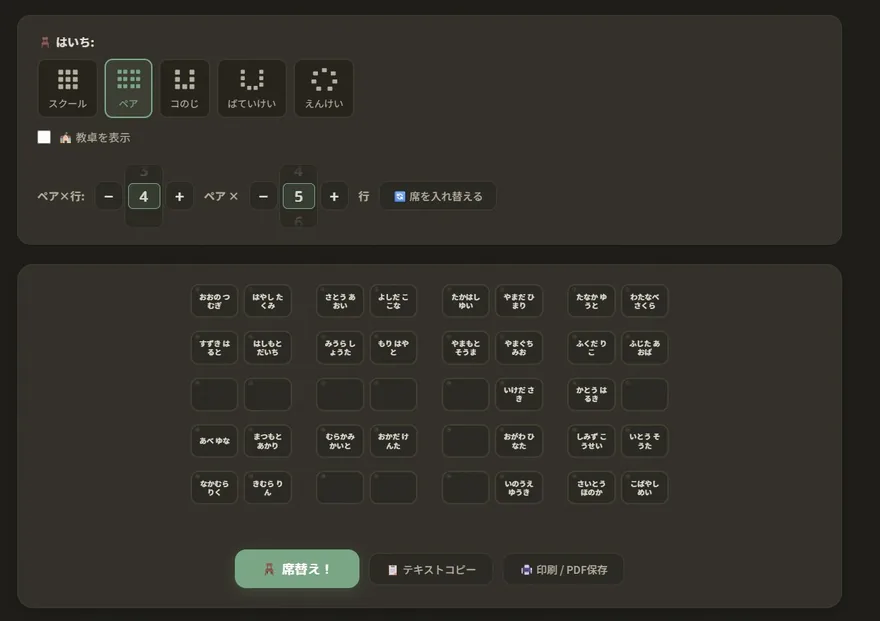
Pairs (for collaborative learning)
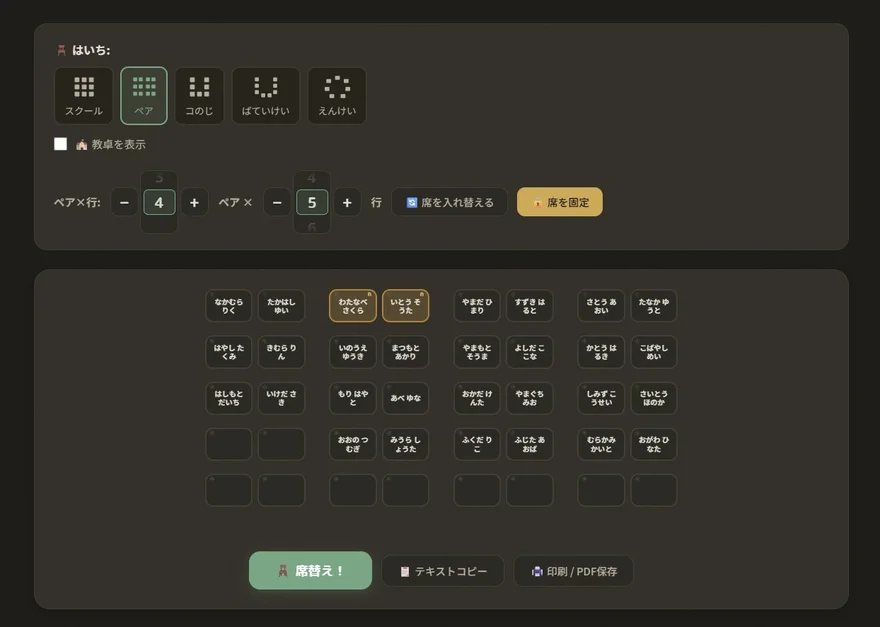
An arrangement where desks are lined up two at a time. It makes pair learning and discussion activities easy, and the compatibility of neighbors matters. Use the "keep apart" condition to avoid combinations that tend to cause trouble.
Example of a pair layout (seating-chart maker)
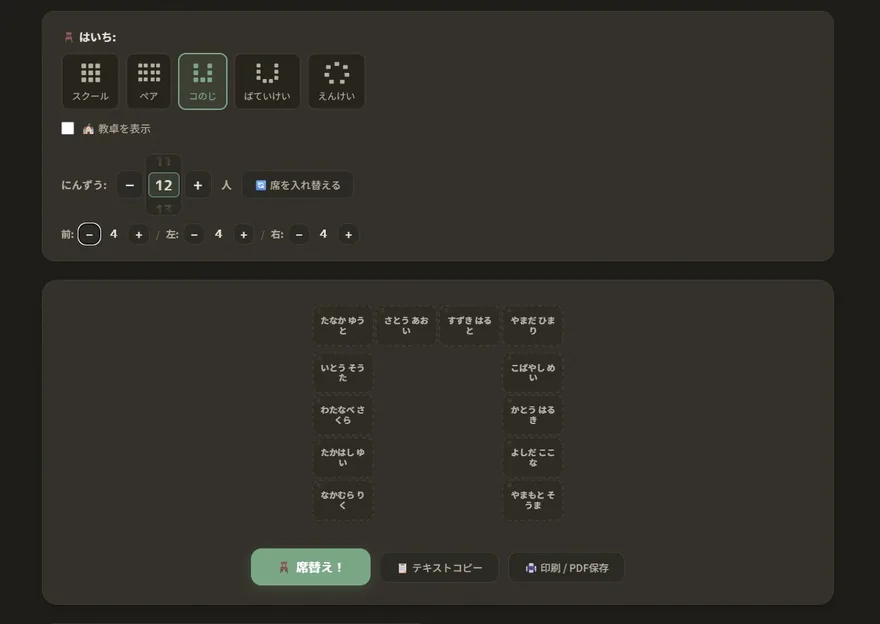
U-shape (for discussion and presentation)
A layout with desks arranged in a U. Because everyone's face is visible, it suits discussion activities and presentation situations. At schools for the deaf, this arrangement, where everyone can see one another, is used daily for conversation in sign language and for lip-reading. In seating, where you sit along the U changes your distance from the teacher's desk and your sightlines, so combining it with fixed seats works well.
Example of a U-shape layout (front, left and right seat counts adjustable)
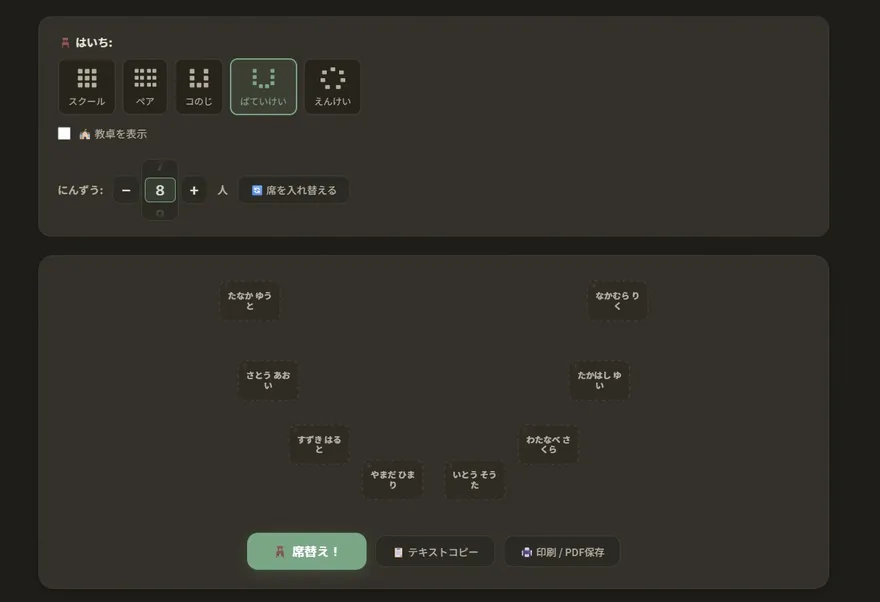
Horseshoe (U-shaped)
An arrangement that widens the opening of the U, forming a "U" that is open on the teacher's side. Everyone's face is visible, and the teacher can easily step into the center, making it easy to switch between individual and whole-class instruction. It is often used in small-group lessons at schools for the deaf and in discussion-style lessons for small classes.
Example of a horseshoe (U-shaped) layout (seating-chart maker)
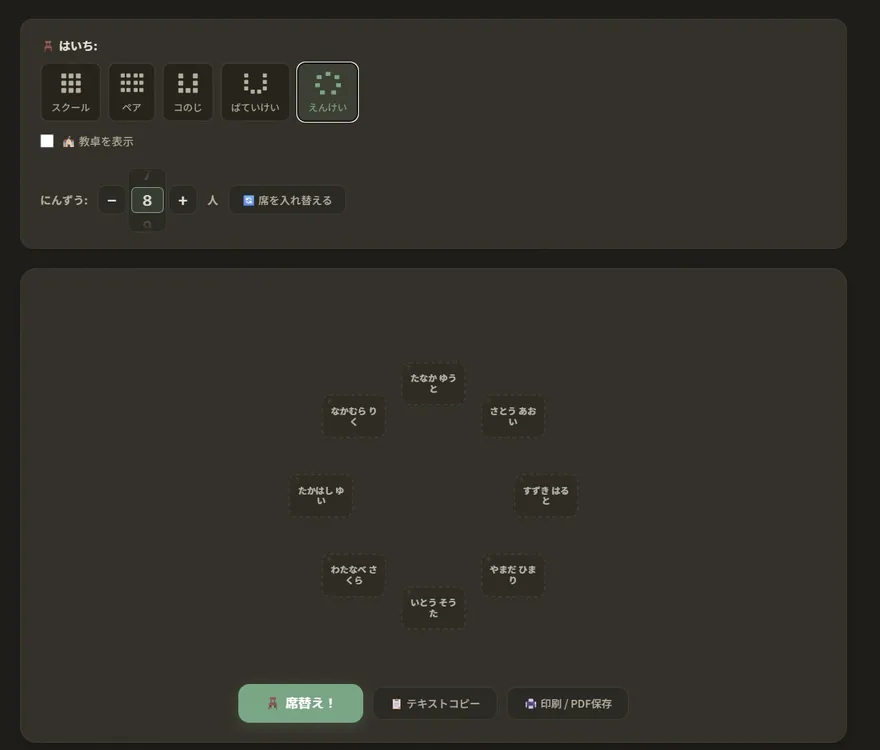
Circle
An arrangement where everyone sits in a ring. It suits class meetings, group work, and morning and end-of-day gatherings. It creates a flat atmosphere with no hierarchy, but with many people the circle becomes too large, so it is best suited to classes of 20 or fewer.
Example of a circle layout (seating-chart maker)
Group tables (special-subject rooms and group work)
An arrangement where several desks are joined into an island and the children sit around it. This is the shape you get in special-subject rooms with large desks ── the science room, the art room, the home economics room ── and in the classroom when children work in groups. Everyone at the same table can see each other's faces, so discussion comes easily, but some tables end up far from the blackboard, so visibility has to be considered table by table. In the seating-chart maker you lay the desks out as so many across by so many down, and seat 0 to 8 people at each desk.
Many seating tools do not support the U-shape, horseshoe and circle layouts. The seating-chart maker supports all 6 layouts, including these three, and it's free to use from setting conditions all the way through to printing.
What to do about seating in the science room and the art room
Even once the classroom seating is settled, the seats in the science room or the art room tend to stay "roughly the same as last year." Special-subject rooms differ from the classroom in both the number and the shape of the desks, so you cannot simply carry the classroom seating chart over. Experiments and cooking also involve safety, so this is exactly where I want to decide the seats deliberately.
Three things settle the seating in a special-subject room.
How many people sit at one desk
Four to a science bench, five or six to a cooking counter ── in a special-subject room the unit of headcount is different from the classroom. In the group-table layout of the seating-chart maker, you lay the desks out as so many across by so many down and set 0 to 8 people per desk. It goes fastest if you enter the number of desks the room actually has first, and then decide the headcount per desk.
Which side of the desk they sit on
Sometimes only one side is used, as with a science bench; sometimes the children surround all four sides, as with a cooking counter or a group desk. The group-table layout lets you choose between "left and right only" and "left and right plus top and bottom," so you can match how the desks are actually used. You can also switch each desk between portrait and landscape, which covers rooms full of long, narrow benches.
Which pairs must not share a desk
In a special-subject room the question is less "are they next to each other" than "do they end up at the same desk." In the group-table layout, the "keep apart" condition works as "do not put them at the same desk." Pairs who egg each other on, or a child whose hands you want to keep an eye on, are worth specifying here. The reverse also works: "seat together" gathers children who support each other at the same desk.
The desks can be named. Matching them to what the room actually calls them ── "Bench 1," "Counter A" ── means the printed sheet can go straight up on the wall of the special-subject room. The teacher's desk can be placed on any of the four sides, so even when the room faces a different way from the classroom, you can print it the way it really is.
How to use the seating-chart maker
The seating-chart maker is a free browser tool within the SignCascade UD site. No installation and no sign-up are required, and you can use it right away in any browser on a PC, tablet or smartphone. Here is the basic flow.
1. Enter the names
Enter one name per line in the text area, or drag and drop an Excel, CSV or TXT file to load it. You can use your roster file as-is, so there's no hassle of typing everything by hand.
2. Choose a layout
Choose from the 6 options: rows, pairs, U-shape, horseshoe, circle and group tables. You can also adjust the number of columns and rows to match your actual classroom.
3. Set the conditions
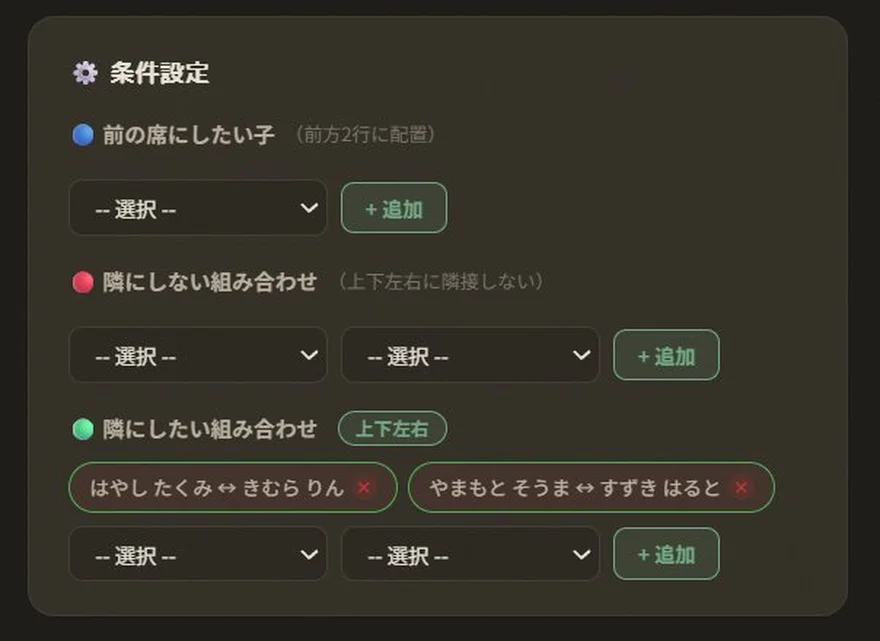
As needed, combine conditions such as "this child stays in a front seat" or "keep these two apart."
4. Shuffle
Press the "Shuffle" button and the seats are decided at random while satisfying the conditions. If you don't like the result, you can redo it as many times as you want.
5. Lock seats
Press the "🔒 Lock seat" button to enter lock mode, then tap the seat you want to lock and a 🔒 mark appears. Locked seats won't move even when you shuffle (tap again to release). You can decide "this child absolutely goes here" first and then shuffle only the rest, or lock the good seats from a shuffle result and shuffle again ── either way works.
Seats with a 🔒 mark do not move even when you shuffle (seating-chart maker)
If a child in a locked seat is also included in a "keep together" condition, the conditions may conflict and the arrangement may become impossible. In that case a hint appears saying "💡 The 'sit next to ○○' condition conflicts with the locked seat," so release one of them and adjust.
6. Swap the seats you're concerned about
Press "Swap seats" to enter swap mode, then just tap two seats in turn to exchange those two people. Based on a shuffle result, you can quickly make final adjustments like "I just want to swap these two front to back." You can swap in any of the rows, pairs, U-shape, horseshoe, circle and group-table layouts.
7. Print / save
The finished seating chart supports printing to A4 paper, saving as a PDF file, and copying as text. You can also adjust the position of the teacher's desk to make a chart that matches your actual classroom. The final arrangement you swapped by hand is printed and saved exactly as-is.
Seating is an important moment in running a class. Rather than deciding purely at random, adding a few considerations helps create a classroom where children can spend their days with peace of mind.
Condition settings where you can specify "children to put in front seats" and "combinations to keep apart" (seating-chart maker)
Consideration for eyesight
Place children with weaker eyesight or who wear glasses in front seats where the blackboard is easy to see. Using the seating-chart maker's "fixed seat" feature, you can keep a particular child fixed at the front while shuffling the rest.
Consideration for hearing
Place children who use hearing aids or who have difficulty catching speech in positions where the teacher's voice reaches easily. At schools for the deaf, the U-shape and horseshoe arrangements, where sign language and lips are visible, are the basics.
Consideration for relationships
If you know of a pairing that tends to cause trouble, set the "keep apart" condition. Conversely, it's also effective to place supportive combinations next to each other using fixed seats.
An environment that helps concentration
Children who are easily distracted tend to settle down when placed near the teacher's desk, away from windows and doors. With the seating-chart maker, the "fixed seat" feature handles this.
Frequently asked questions
Is the seating-chart maker free?
Yes. It's completely free, and no sign-up is required. You can use it with just a browser.
Can I use it on a smartphone?
Yes. It works in browsers on PCs, tablets and smartphones. On a smartphone you can create and print the seating chart and swap seats too.
Can I print?
Yes. It supports printing to A4 paper and saving as a PDF.
How many "keep apart" conditions can I set?
You can combine and set multiple conditions. You can also use fixed seats and "keep apart" at the same time.
Is my data saved to a server?
No. The name data is processed within your browser (only on your device) and is never sent to any server.
In closing
Seating isn't just about changing where people sit ── it's an important moment that shapes the mood of the class and how easily children can learn. Face-to-face layouts like the U-shape and horseshoe are effective for energizing discussion and presentations, and are used in many classrooms, including at schools for the deaf.
With the seating-chart maker, you get support for all 6 layouts ── rows, pairs, U-shape, horseshoe, circle and group tables ── and you can set fixed seats and "keep apart" conditions and shuffle automatically. The chart you make can be printed or saved as a PDF right away.